Mobile App
Installation
You can download HUUM mobile application from Google Play store or Apple store.
Creating an account:
Connecting your sauna:
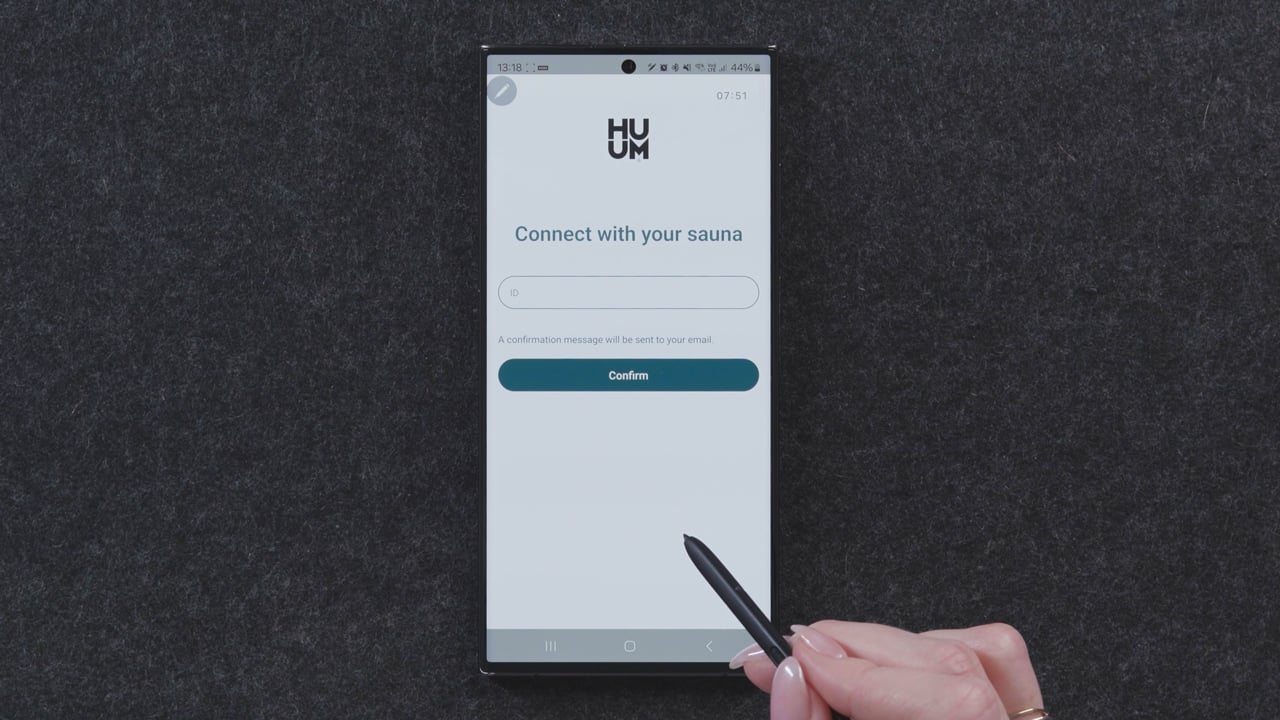
You will find your Sauna ID and code from the front cover of the UKU main module.
Private
When one user is actively using the sauna, others cannot control it through the app until the session ends.
Ideal for home use or staff-only areas.
Public
Any user with access can turn the sauna on or off. This setting is suitable for shared environments like gyms, spas, or hotels where multiple users may need control.
Connecting to Wi-Fi
A Wi-Fi connection is required to use the mobile app (available with the UKU Wi-Fi controller).
The system saves your sauna heating (and other activity) logs via Wi-Fi, which helps the HUUM support team diagnose and resolve any issues more quickly and accurately.
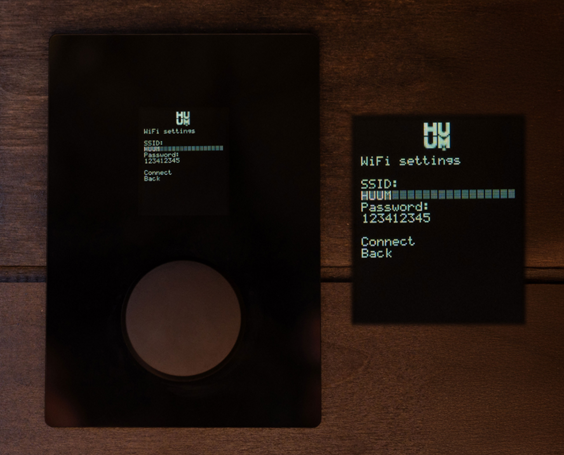
- Press and hold the UKU control panel’s button for 9 seconds to access the settings menu (you’ll first see the timer menu, but keep holding until you reach the settings menu).
- Select “Wi-Fi settings” and then go to “SSID.”
- Choose the correct Wi-Fi network from the list.
- Enter the network password (ensure the name and password are each no longer than 20 characters, and password contains no spaces).
- Click “Connect” and follow the on-screen instructions to complete the setup.
If you have an UKU Local control system but wish to upgrade to Wi-Fi connectivity, this can be done through the HUUM mobile app. First, you have to connect the UKU control system to the Wi-Fi network as described before and then install HUUM Mobile app and create an account. All further instructions are given in the mobile application.
User instructions
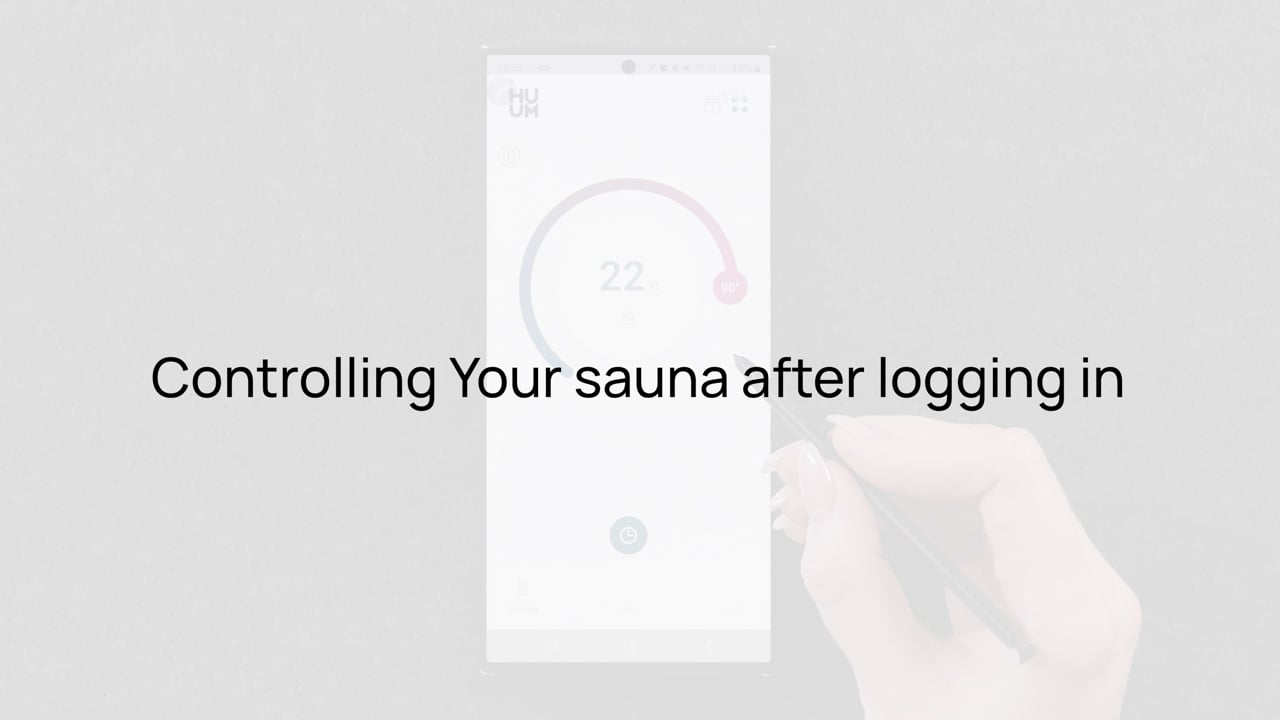
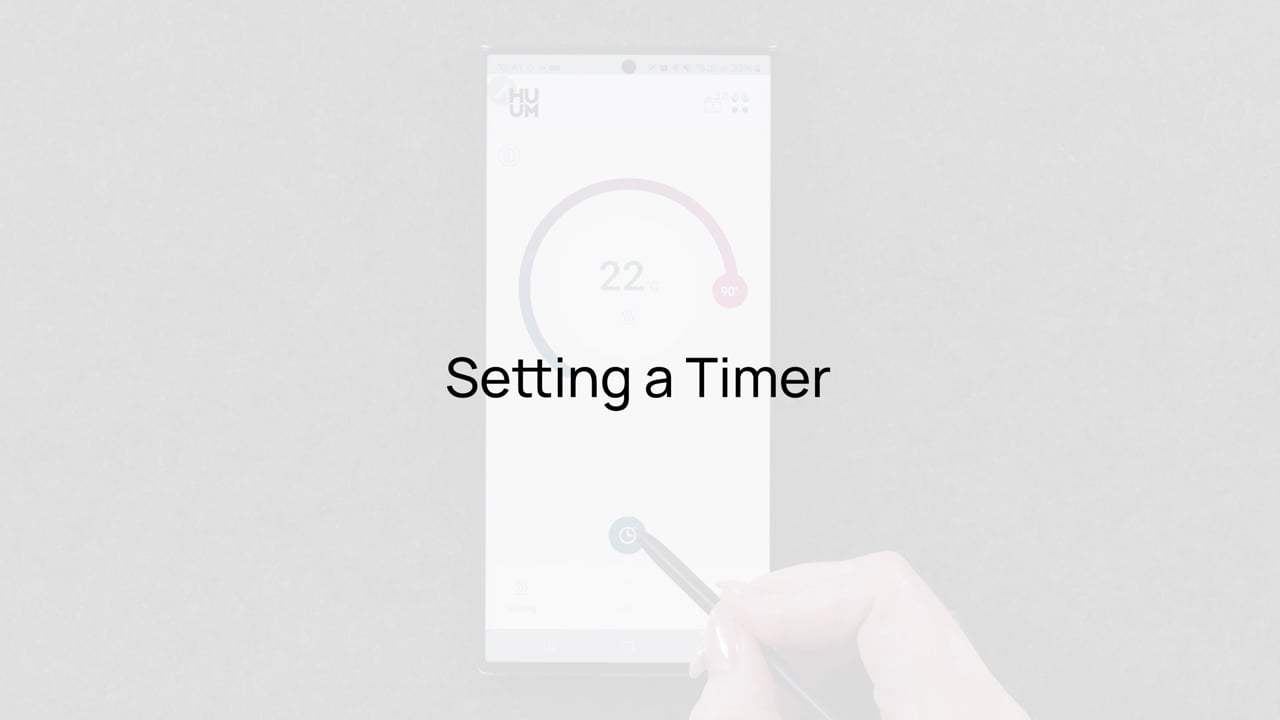
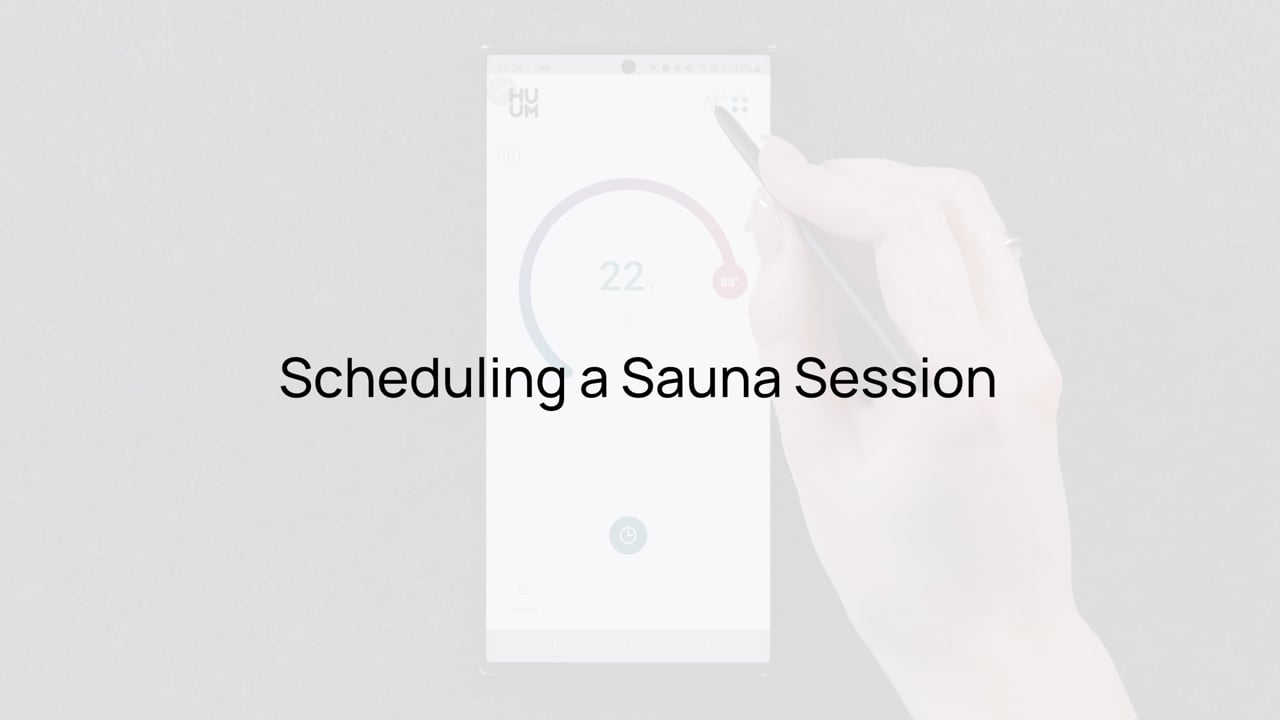
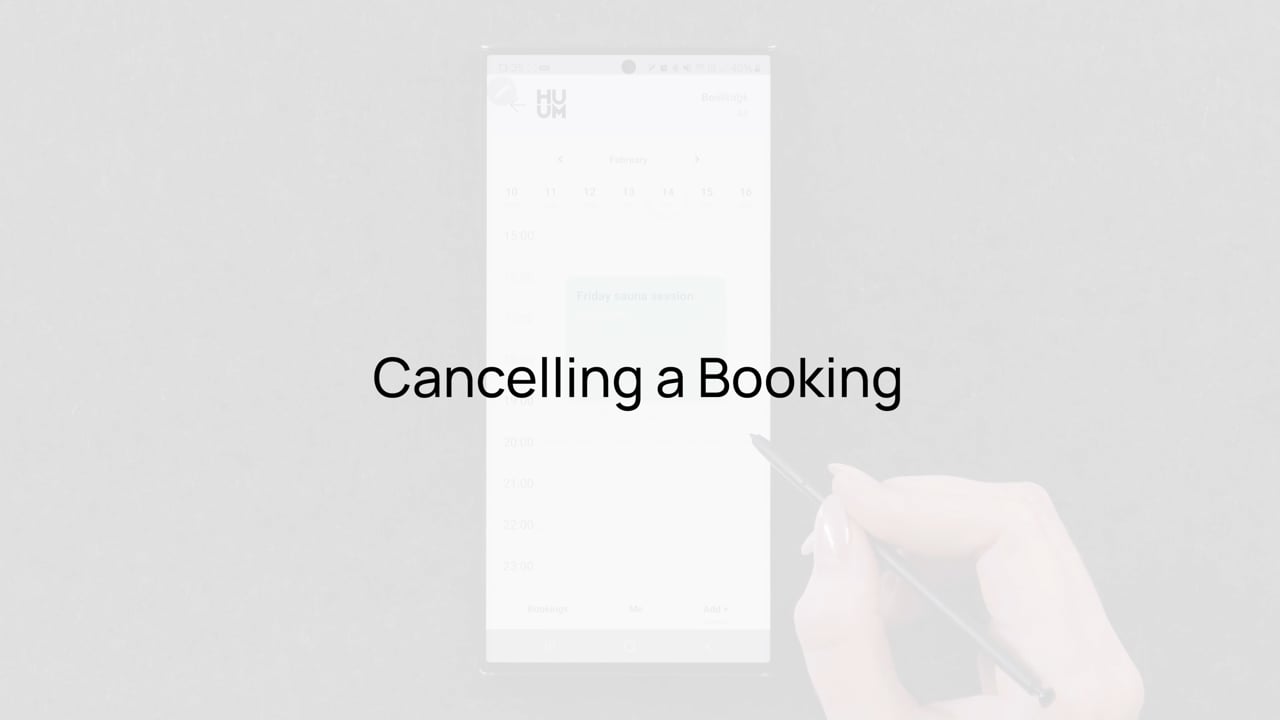
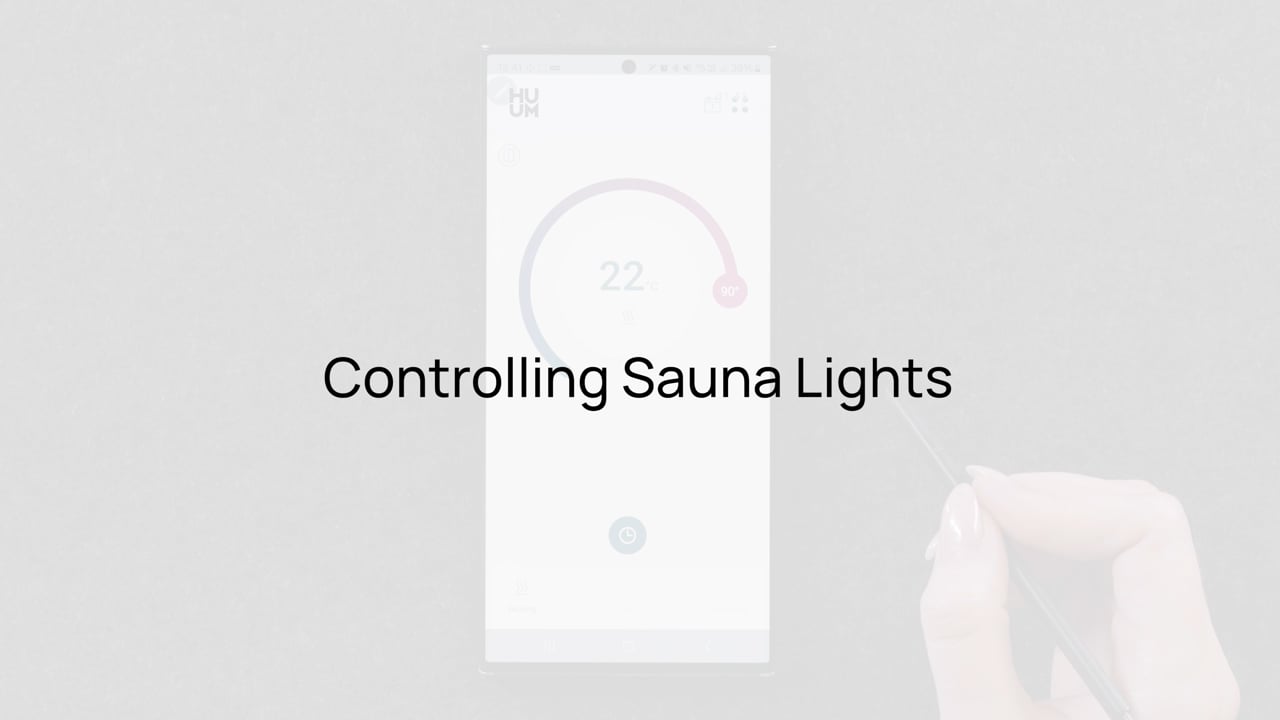
Lights:
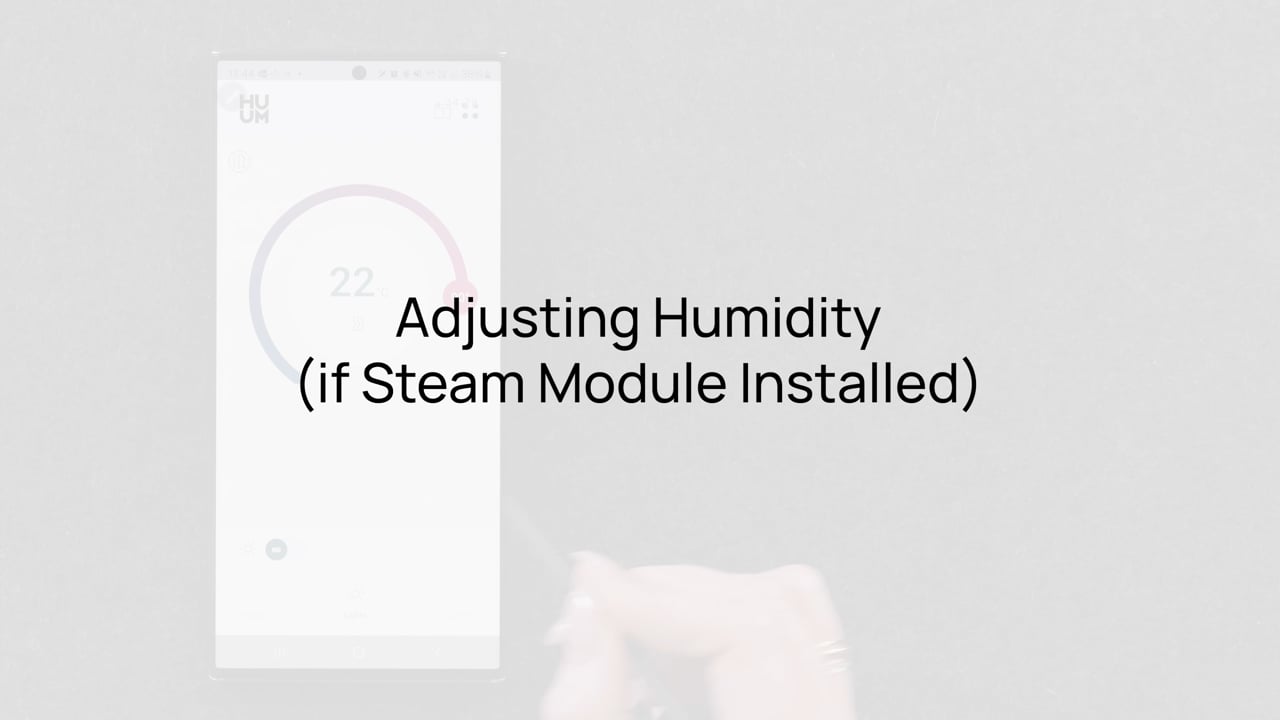
Humidity:
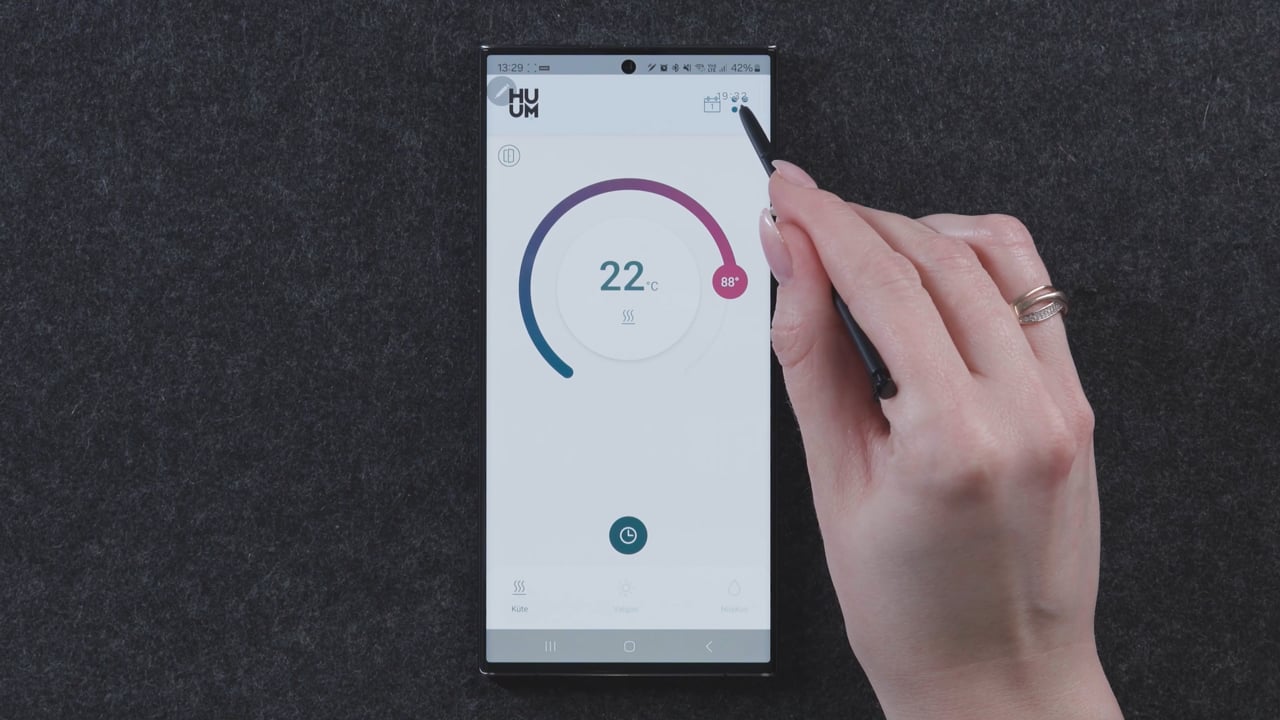
The remote start safety function ensures that your sauna is safe to heat remotely when using a mobile app. It requires you to confirm that the sauna is empty and the door is closed before activating the heater. Once confirmed, the sauna remains safe for remote activation unless the door is opened.
Remote start safety can be turned on/off from the control panel settings menu.
This feature prevents accidental heating when the sauna is not empty, reducing the risk of fire, overheating, or damage to items left inside.
Always use the remote start safety function when you plan to heat the sauna remotely. Follow the confirmation steps to ensure the sauna is secure before activating it from your app.
Troubleshooting
Make sure that notifications are enabled for the HUUM app in your phone’s settings and that the app is connected to Wi-Fi. Also, check that your mobile device has internet access and the latest version of the app is installed.
- Restart your Wi-Fi router and the UKU control system (switch off the power for a few seconds and turn it back on).
- Reset UKU to default settings via the control panel menu.
- Try reconnecting the control system to your home Wi-Fi network.
- Log out and in again from the app
- Uninstall and reinstall the app
A slight difference between the measured temperatures is completely normal. It derives from the intrinsic error of measurement that applies to the devices. However, if the difference exceeds 50-59°F / 10–15°C degrees, you should check the following:
- Are the temperature sensor and sauna thermometer placed in different locations in the steam room where the temperatures actually differ?
- Is the temperature sensor too close to the sauna heater? Or is it too close to the door?
The best location for the temperature sensor is 19.7 in / 50 cm from the heater and approximately 5.9 in / 15 cm from the ceiling. It should not be placed close to vents and should be min. 19.7 in / 50 cm from the windows and door.
If none of the causes described above apply, and the following problem persist, the fault likely resides in the temperature sensor or its wiring and it requires replacing. Please contact us at support@en.old.huum.ee with a description of the problem and add a picture of your sauna room.
If the error message “Sauna is offline” is displayed, it means that your UKU control system is not connected to the internet.
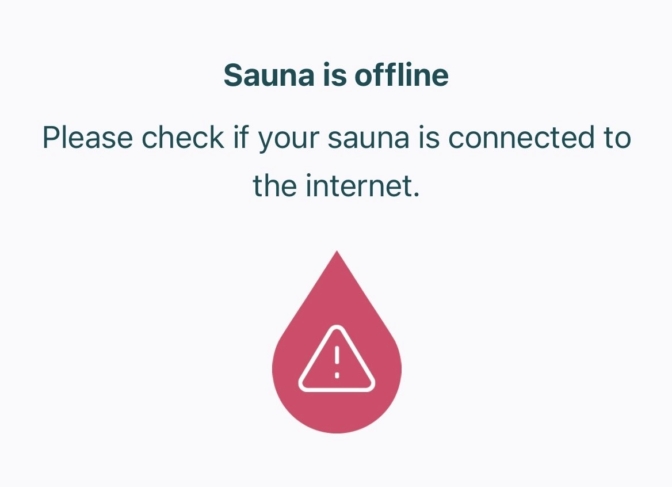
Restart your Wi-Fi router and the UKU Control system.
If the Control system is connected to Wi-Fi but still not working, make sure:
- you are using the latest version of the mobile app
- your phone’s operating system is up to date